Choosing the best kiosk software is a business decision that affects uptime, service speed, and long term scale.
For many organizations, kiosks support payments, check-ins, ticketing, and customer onboarding. When the software behind those kiosks fails, the result is downtime, long queues, and poor customer experience.
The right kiosk management software gives teams control over devices, content, and workflows across locations. It also reduces manual work, limits security risk, and makes it easier to scale from a few kiosks to hundreds.
Many buyers focus on hardware first, but software is what keeps kiosks stable, secure, and useful over time.
This guide explains how to choose the best kiosk software using a clear step by step approach.
You will learn what kiosk software really includes, how to match it to your use case, and which features are non negotiable. A practical checklist is included to help you compare vendors with confidence.
The kiosk software market reached USD 4.8B in 2025 and is projected to hit USD 13.7B by 2034, showing strong growth and long term investment momentum.
To understand the foundation, it helps to first review what is a kiosk and how self-service systems are used across industries:
What Kiosk Software Actually Includes
Kiosk software is not a single function. It is a group of tools that control how a kiosk operates, what users can access, and how devices are managed at scale. Buyers often underestimate this scope and later face limits when deployments grow.
At a basic level, self-service kiosk software locks down the device so users can only access approved applications. This is often called kiosk mode. Without this, users can exit apps, change settings, or misuse the device.
In addition to lockdown, modern kiosk management software includes device control. This allows teams to install apps, apply updates, and change settings remotely. When kiosks are spread across many locations, remote access becomes essential.
Content control is another key part. A kiosk CMS lets teams manage screen layouts, instructions, media, and workflows without visiting the device. Content scheduling allows updates based on time, location, or service type.
Monitoring and visibility are also core. A kiosk dashboard shows device status, connectivity, uptime, and errors. Alerts notify teams when a kiosk goes offline or behaves abnormally. Logs provide records that support troubleshooting and audits.
Integration is what connects kiosks to business systems. Kiosk software integration supports payments, POS, CRM, ERP, identity systems, and queue platforms. APIs make these connections reliable and scalable.
Analytics and reporting close the loop. Kiosk analytics and reporting show how users interact with kiosks, where drop off happens, and how performance changes over time. This data supports service improvement and ROI tracking.
A full overview of how these components work together can be found in this self-service kiosk software overview.
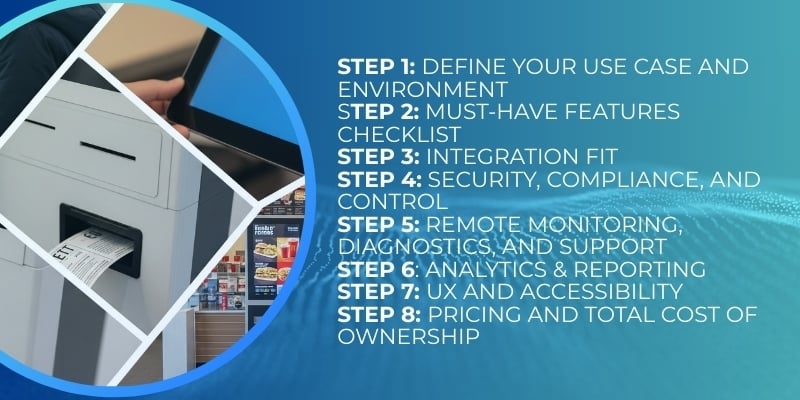
Step 1: Define Your Use Case and Environment
Before comparing vendors, define how kiosks will be used and where they will operate. This step prevents overbuying features or choosing software that cannot support real conditions.
Clarify the primary use case
Different use cases place different demands on kiosk software.
Common use cases include:
- Customer check-in and registration
- Payments and bill settlement
- Ticketing and appointment handling
- Self-ordering and form submission
- Information access and wayfinding
For example, payment kiosks require strong security, encryption, and payment gateway support. Check-in kiosks depend on fast workflows and scanner integration. Ordering kiosks rely on UI speed and error handling.
Write down what each kiosk must do from the user’s point of view. This becomes the baseline for feature evaluation.
Understand the operating environment
Environment affects both hardware and software needs.
Key factors include:
- Indoor or outdoor placement
- Fixed or mobile kiosks
- Staff assisted or fully unattended use
- Single site or multi location deployment
Outdoor kiosks need stronger monitoring and faster recovery tools. Multi location rollouts require kiosk fleet management and centralized control. Unattended kiosks must handle errors without staff help.
Match environment to software needs
Once use case and environment are clear, match them to software requirements.
Examples:
- Multi location rollouts require strong remote control and bulk updates
- Public access kiosks require strict lockdown and session reset
- Regulated environments require audit logs and access control
- High traffic locations require uptime monitoring and alerts
For a practical view of how software adapts to different use cases, review these self-service kiosk solutions.
Step 2: Must-Have Features Checklist (Non Negotiables)
Software holds 72.4 percent of the kiosk software market share, which is why buyers should focus on software strength before hardware design.
The following features should be treated as mandatory. If a vendor cannot support these reliably, the solution will struggle at scale.
Core control and security features
- Kiosk mode that restricts access to approved apps only
- App and OS control to prevent user tampering
- Session reset after each user interaction
- Role based access control for admins, operators, and support teams
- Secure update process with version control
These features protect devices and user data while keeping operations stable.
Device and fleet management
- Centralized kiosk device management
- Bulk configuration and updates
- Remote reboot and recovery tools
- Offline operation with later sync
- Device health monitoring and alerts
These tools reduce the need for on site visits and support large kiosk fleets.
Peripheral and workflow support
- Printer support for receipts and tickets
- Scanner support for QR codes, IDs, and documents
- Card and payment device integration
- Camera and biometric device support where needed
- Workflow automation for multi step tasks
Peripheral integration is a common failure point, so live testing is critical.
Content and user flow control
- Kiosk CMS for screen content and layouts
- Content scheduling by time or location
- Multi language support
- Clear error handling and recovery paths
Good content control improves completion rates and reduces confusion.
Monitoring, logs, and uptime tools
- Real time kiosk remote monitoring
- Event and error logs
- Usage and system logs for audits
- Uptime tracking and reporting
- SLA support and escalation workflows
Monitoring is what turns software into a managed service instead of a static install.
Analytics and reporting basics
- Session counts and completion rates
- Abandonment tracking
- Peak usage times
- Error frequency
- Device uptime metrics
These insights support continuous improvement and ROI tracking.
A detailed feature reference can be reviewed here under kiosk software features.
How to Use This Checklist in Vendor Demos
During demos, do not rely on slides alone. Ask vendors to show real actions.
Good demo requests include:
- Lock and unlock a device live
- Push an app update remotely
- Simulate a device error and recovery
- Show logs tied to a real event
- Walk through a content update
This approach reveals how mature the software really is.
Step 3: Integration Fit (The Biggest Dealbreaker)
Integration is where many kiosk projects fail. Even strong kiosk software becomes a problem if it cannot connect cleanly with existing systems. This is why kiosk software integration should be reviewed early, not at the end of vendor selection.
Systems that must integrate
Most self-service kiosks do not work in isolation. They are part of a wider service flow. The software should support integration with:
- POS systems for transactions and receipts
- CRM systems for customer records
- ERP platforms for backend workflows
- Payment gateways for card and digital payments
- Identity systems for verification
- Queue and appointment platforms for service flow
If any of these systems are already in use, the kiosk software must support them without custom workarounds.
Why APIs matter
API integration is the foundation of scalable kiosk deployments. APIs allow kiosks to exchange data with other systems in real time. Without strong APIs, integrations become fragile and expensive to maintain.
Good API support allows:
- Faster deployment across locations
- Easier upgrades without breaking workflows
- Consistent data across channels
- Better security and access control
Ask vendors for API documentation during evaluation. A mature product will have clear, well documented APIs and proven integrations.
Peripheral integration risks
Peripheral integration is another common issue. Printers, scanners, cameras, and payment devices must work smoothly with kiosk software.
Key questions to ask:
- Which peripherals are natively supported
- How drivers are updated
- How errors are reported and logged
- Whether peripherals can be monitored remotely
- Testing real peripherals during demos reduces risk later.
For a practical guide on planning integrations before deployment, review how to plan a self-service kiosk deployment.
Step 4: Security, Compliance, and Control
Security is not optional for kiosks. These devices often handle payments, personal data, or identity checks. Weak controls can lead to data leaks, fraud, or service disruption.
Device and app security
Strong kiosk security and compliance starts with device control.
Essential controls include:
- Lockdown that blocks OS access
- App whitelisting to limit what runs
- Secure boot and signed updates
- Encrypted storage and communication
These controls prevent misuse and protect system integrity.
Role based access control
Role based access control ensures only approved users can manage kiosks. Admins, operators, and support teams should have separate permissions.
This reduces risk by:
- Limiting access to sensitive settings
- Preventing accidental changes
- Supporting audit reviews
RBAC is especially important in large teams and regulated environments.
Audit logs and traceability
Audit logs provide records of what happened, when, and by whom. This supports compliance and troubleshooting.
Audit logs should capture:
- Configuration changes
- Software updates
- Access attempts
- Error events
Logs must be time stamped and stored securely.
Payments and compliance
If kiosks handle payments, compliance requirements increase. Payment flows must support encryption and follow PCI standards. Software should isolate payment data and avoid local storage where possible.
Ask vendors how payment data is handled and where responsibility lies between software and payment providers.
Secure remote access
Remote access is useful but risky if poorly designed. Secure remote access should include:
- Encrypted connections
- Limited access windows
- Logging of remote sessions
This balances support efficiency with security.
For additional context on managing system access and controls, this kiosk software implementation guide offers useful background.
Step 5: Remote Monitoring, Diagnostics, and Support
As kiosk deployments grow, manual checks become impossible. Remote monitoring is what keeps kiosks running without constant on site support.
What remote monitoring should include
Strong kiosk remote monitoring provides a live view of device health.
Core elements include:
- Online and offline status
- Network connectivity
- App and peripheral status
- Error alerts and warnings
This allows teams to act before users are affected.
Diagnostics and recovery tools
Monitoring alone is not enough. Teams need tools to fix issues remotely.
Important tools include:
- Remote reboot and restart
- App restart without device reboot
- Log access for error analysis
- Remote configuration changes
These tools reduce downtime and service interruptions.
Uptime management at scale
Kiosk uptime is critical in high traffic environments. Downtime means lost transactions and poor experience.
To manage uptime:
- Use automated alerts for failures
- Track downtime trends
- Set response time targets
- Define escalation paths
SLA support should be clear in vendor contracts. Ask about response times, support hours, and incident handling.
Support workflows and ticketing
At scale, support must be structured. Good kiosk software integrates with ticketing or support workflows.
This allows:
- Faster issue resolution
- Clear ownership
- Historical tracking of issues
Support data also helps identify weak points in deployments.
Why monitoring matters more in unattended kiosks
Unattended kiosks rely fully on software for stability. Without staff nearby, issues must be detected and fixed remotely.
Monitoring and diagnostics turn kiosks into managed services rather than static machines.
To see how kiosks work with queue systems and live monitoring, review this queue kiosk overview.
Step 6: Analytics and Reporting (Prove ROI)
Kiosk software should not only run devices. It should also show whether those devices deliver value. This is where kiosk analytics and reporting matter.
Without data, teams rely on assumptions. With data, they can improve service speed, reduce failure points, and justify investment.
Key metrics to track
Good kiosk analytics focus on both usage and system health.
Usage metrics include:
- Total sessions per kiosk
- Completion versus abandonment rates
- Average time per session
- Peak usage hours
- Transactions per day
System metrics include:
- Uptime and downtime
- Error frequency
- App crashes
- Peripheral failures
Together, these metrics show how kiosks perform and where issues occur.
How analytics improve operations
Analytics help teams make better decisions.
Examples include:
- Adjusting workflows where users drop off
- Improving screen design based on session length
- Reallocating staff during peak kiosk usage
- Identifying underused kiosks
Analytics turn kiosks into learning tools, not just service points.
Reporting for leadership and planning
Reports should be easy to understand and export. Dashboards should show trends over time, not just raw numbers.
Good reporting supports:
- ROI evaluation
- Budget planning
- Capacity planning
- Performance reviews
A strong reporting system also supports audits and compliance reviews.
For examples of how reporting works in practice, review this kiosk reporting overview.
To understand how data supports return on investment, understand the principle of how self-service kiosks help achieve ROI.
Step 7: UX and Accessibility (Reduce Drop Off)
Even the best software fails if users cannot complete tasks. Kiosk UI and UX directly affect completion rates and customer satisfaction.
Why simple design works best
Kiosks serve many users, including first time users. Screens must be clear and fast.
Good design principles include:
- Large buttons and readable text
- Clear step by step flow
- Limited choices per screen
- Visible progress indicators
Complex layouts increase abandonment and errors.
Accessibility and inclusion
Accessibility is not optional in many regions. It also improves usability for everyone.
Important accessibility features include:
- Multi language support
- High contrast modes
- Screen reader support where required
- Clear error messages and guidance
Accessibility reduces frustration and improves service equity.
Handling errors and user confusion
Errors happen. Good software handles them gracefully.
Effective error handling includes:
- Clear messages explaining what went wrong
- Simple recovery steps
- Automatic session reset if needed
This keeps kiosks usable even when problems occur.
For a deeper look at common design issues, understand the challenges in UX design of self-service kiosks.
Step 8: Pricing and Total Cost of Ownership
Kiosk software pricing is often misunderstood. The lowest price is rarely the lowest cost over time.
Common pricing models
Vendors may price software based on:
- Per device licenses
- Per location licenses
- Feature or module based pricing
- Usage based pricing
Understanding the model helps avoid surprises later.
Hidden and long term costs
Beyond licenses, costs may include:
- Integration work
- Custom workflows
- Support tiers
- Content updates
- Training and onboarding
These costs affect total cost of ownership.
Evaluating total cost of ownership
To assess TCO, consider:
- License costs over several years
- Support and SLA costs
- Time saved through automation
- Reduced downtime and service failures
- Higher upfront costs may reduce long term expenses.
For guidance on managing costs, review how to optimize self-service kiosks.
Vendor Comparison Checklist
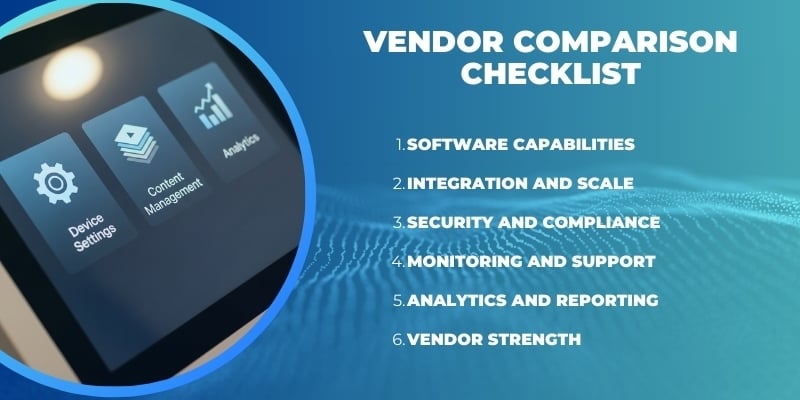
Use this checklist during demos and evaluations.
Software capabilities
- Strong kiosk mode and lockdown
- Remote device and app management
- Session reset and privacy controls
- Peripheral integration support
Integration and scale
- Proven API integration
- Support for POS, CRM, ERP
- Queue and appointment system support
- Multi location fleet management
Security and compliance
- Encryption and secure updates
- Role based access control
- Audit logs and traceability
- Payment compliance where needed
Monitoring and support
- Real time monitoring
- Remote diagnostics and recovery
- Clear SLA and support terms
- Ticketing or incident workflows
Analytics and reporting
- Usage and performance dashboards
- Exportable reports
- ROI tracking support
Vendor strength
- Industry experience
- Reference deployments
- Product roadmap clarity
For an example of an enterprise kiosk platform, see the ViaOS overview.
Quick Recommendations by Industry
Banking
- Security, compliance, and audit logs matter most. Payment and identity integration are critical.
Telecom
- Speed, device uptime, and SIM or device integration are key.
Learn more about telecom kiosks.
Retail
- Fast UI, payment reliability, and peak hour performance are priorities.
Airports and transport
- Uptime, monitoring, and clear wayfinding matter most due to high traffic.
Healthcare
- Privacy, accessibility, and integration with appointment systems are essential.
FAQs
What is the best kiosk software for multi location deployments?
The best kiosk software for multi location use offers centralized control, strong remote monitoring, and reliable update tools across all sites.
What features should kiosk software include?
Core features include kiosk mode, device management, peripheral support, monitoring, analytics, and secure access control.
How do I secure a self-service kiosk?
Use lockdown mode, encrypted communication, role based access control, audit logs, and regular updates.
What integrations should kiosk softare support?
It should integrate with POS, CRM, ERP, payment gateways, identity systems, and queue or appointment platforms.
How much does kiosk software cost?
Costs vary by license model, features, support level, and integration needs. Total cost of ownership is more important than base price.
Conclusion
Choosing the best kiosk software requires a clear process. Start by defining your use case and environment. Then confirm core features, integration fit, security controls, monitoring tools, and analytics. Finally, review pricing with a total cost mindset.
Strong kiosk software supports uptime, improves user experience, and scales with business growth. By using a structured checklist and testing vendors carefully, organizations can select a platform that delivers long term value.
The best kiosk software is not the one with the longest feature list. It is the one that fits your workflows, integrates cleanly, stays secure, and proves its value through data.
BOOK A FREE DEMO